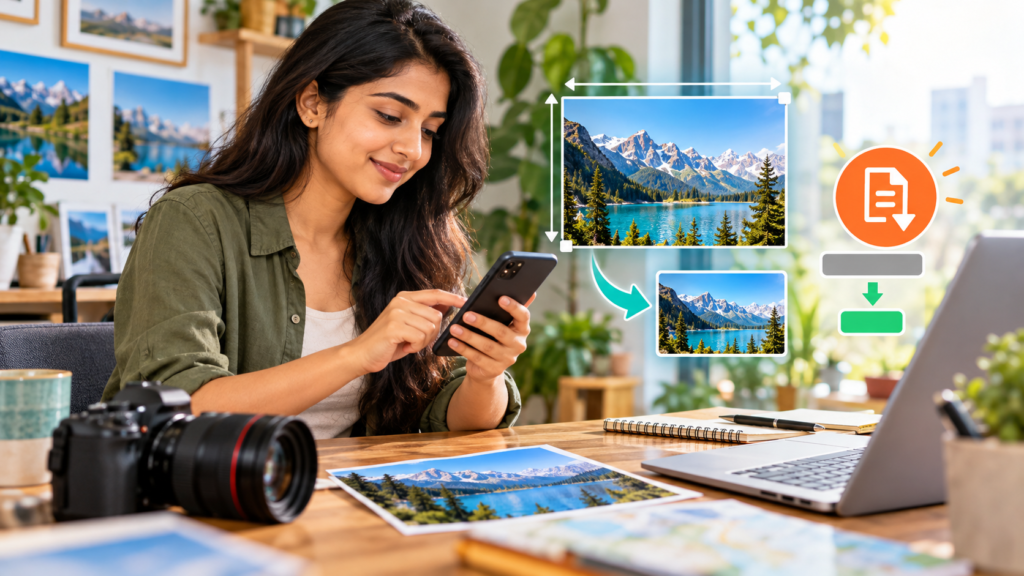
Image Shrinker: Photo Resizer is an Android utility built to help you adjust your pictures locally and privately. Whether you need to compress and resize photos for storage or prepare files for strict portal requirements, the developer says selected photos are processed on your device rather than sent to an image-processing server. The Google Play Data safety section separately discloses collection and sharing of other app data; review it before using the app for sensitive documents.
Key Features to Compress and Resize Photos on Android
Managing picture files often involves balancing visual clarity against restrictive upload limits. Image Shrinker addresses these needs with dedicated modules for adjustments, format handling, and editing workflows.
Smart Photo Compression and Target File Sizes
The compression tool allows you to reduce photo file sizes using quick quality presets or custom quality adjustments. When you need a smaller output, the app lets you aim for a target file size in KB or MB when exporting as JPG or WebP; confirm the saved file size and readability before uploading it.
Consider an applicant submitting identity documents on a government portal. Such sites frequently reject uploads that exceed a strict kilobyte ceiling. Enter the portal’s stated size limit as a target, export the image and check the actual output; compression results depend on the source photo and format.
Dimension Resizing and Proportional Scaling
Beyond compression, the app offers custom resizing controls. You can scale an image down by choosing a percentage or by specifying exact width and height dimensions.
A small business owner documenting catalog products often encounters websites that specify exact dimensions for product listings. Using dimension resizing, the owner can set the required width and height directly so the picture displays uniformly across online listings.
Editing Tools: Crop, Rotate, and Convert
Before shrinking a picture, you may need to adjust the framing or change the file type. Image Shrinker includes integrated editing tools to refine images before final export.
Cropping and Rotating
Unwanted backgrounds can distract from the main subject and add unnecessary bulk to an image. The cropping tool lets you trim away borders or unneeded surroundings, while the rotation tool straightens pictures captured at an awkward angle.
For example, a land owner photographing a paper record or boundary map might capture a shadow or part of the desk around the edges. By cropping the periphery and rotating the orientation upright, the document becomes readable and neat before saving.
Format Conversion
Different platforms require specific file types. The current Google Play release notes mention conversion between JPG and PNG; the full app description also lists JPG and WebP target-size exports. Check the destination portal’s accepted format before converting. This can help when a form asks for a supported format.
A student assembling an online assignment may have graphic charts saved as PNG files, but the upload field might only accept JPG format. Convert a copy and check the saved file before submission; a changed format alone does not guarantee that a portal will accept it.
Workflow Features: Batch Processing, Review, and Privacy
Working with photos should not require repetitive steps for every single picture. The app includes management tools designed to streamline everyday tasks.
Batch Processing
Selecting images individually can become tedious when dealing with many pictures. The batch processing feature enables you to select multiple images and apply adjustments across the entire group at once.
A field technician or farmer capturing multiple field condition photographs can apply the same compression settings to an entire collection in a single batch, making the files easier to archive or send over slow network connections.
Interactive Comparison and Recent Operations
Evaluating compression outcomes is simple thanks to the interactive comparison tool. You can review a side-by-side comparison of the before and after states to verify clarity before saving the final version to your storage. The app also keeps a log of recent operations so you can inspect past tasks.
Local Photo Processing and Data Safety
The developer states that selected photos are processed locally and are not uploaded to an image-processing server. This is a developer statement, not an independent security audit. Google Play’s Data safety disclosure also says the app may collect or share other data types, including location and app activity; the app contains ads. For sensitive documents, read the current Play listing and its linked privacy policy, and avoid unnecessary permissions or sharing.
Getting Started with Image Shrinker
Image Shrinker: Photo Resizer offers practical adjustments without complicated setups. If you frequently handle upload restrictions, check out our guide on how to resize a photo to the required KB for online forms or browse the all apps collection to see other tools developed by Akanksha App Studio.
To get the Android app, open the Image Shrinker Google Play listing. The SarkariAsk app page explains its main features.
Feature and Data safety source checked on 23 October 2026: Google Play listing and Data safety. App behavior can change with updates.
Frequently Asked Questions
Does Image Shrinker upload selected photos to an image-processing server?
The developer says the photo-processing workflow runs on-device. This does not mean the app sends no other data: Google Play discloses possible collection and sharing of other data types. Check the Data safety and privacy-policy details for the current version.
Can I compress photos to a specific file size?
Yes. Image Shrinker lets you set a target file size in KB or MB when exporting your pictures as JPG or WebP.
Can I process more than one photo at a time?
Yes. The app includes a batch processing feature that allows you to select and process multiple images together.
What formats can I convert between using the app?
The app supports format conversion between supported types such as JPG and PNG, and allows exporting to JPG or WebP.