Bhulekh Sathi is an independent land portal guide that also bundles everyday PDF and image tools into the same app. This article walks through the Bhulekh Sathi features one by one, explaining what each tool does, when it helps and how land owners, farmers and anyone handling land paperwork might use it. If you want a shorter overview first, read our earlier post, Bhulekh Sathi: A Land Portal Guide App with PDF Tools.
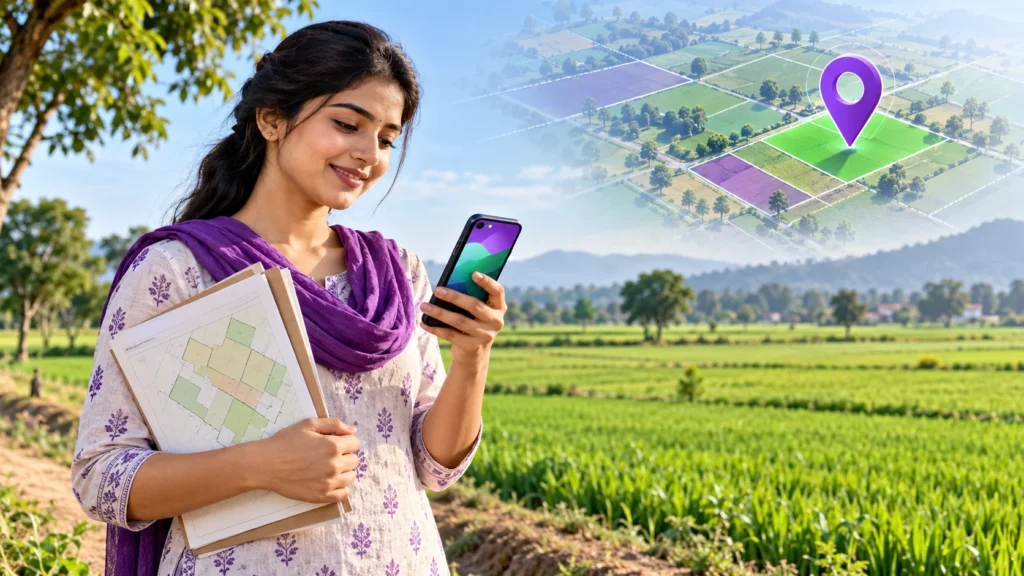
Cover image credit: Original AI-generated editorial illustration by OpenAI for SarkariAsk. It is a conceptual scene, not an app screenshot or a government record.
Recognise the real Bhulekh Sathi app
The screenshots below show the iOS version published by the developer. They show land-service shortcuts, measurement and document options. The Khatauni screen points to the relevant government portal; the app does not issue certified land records itself. Android screens and available features may differ, so check your platform’s store description before installing.
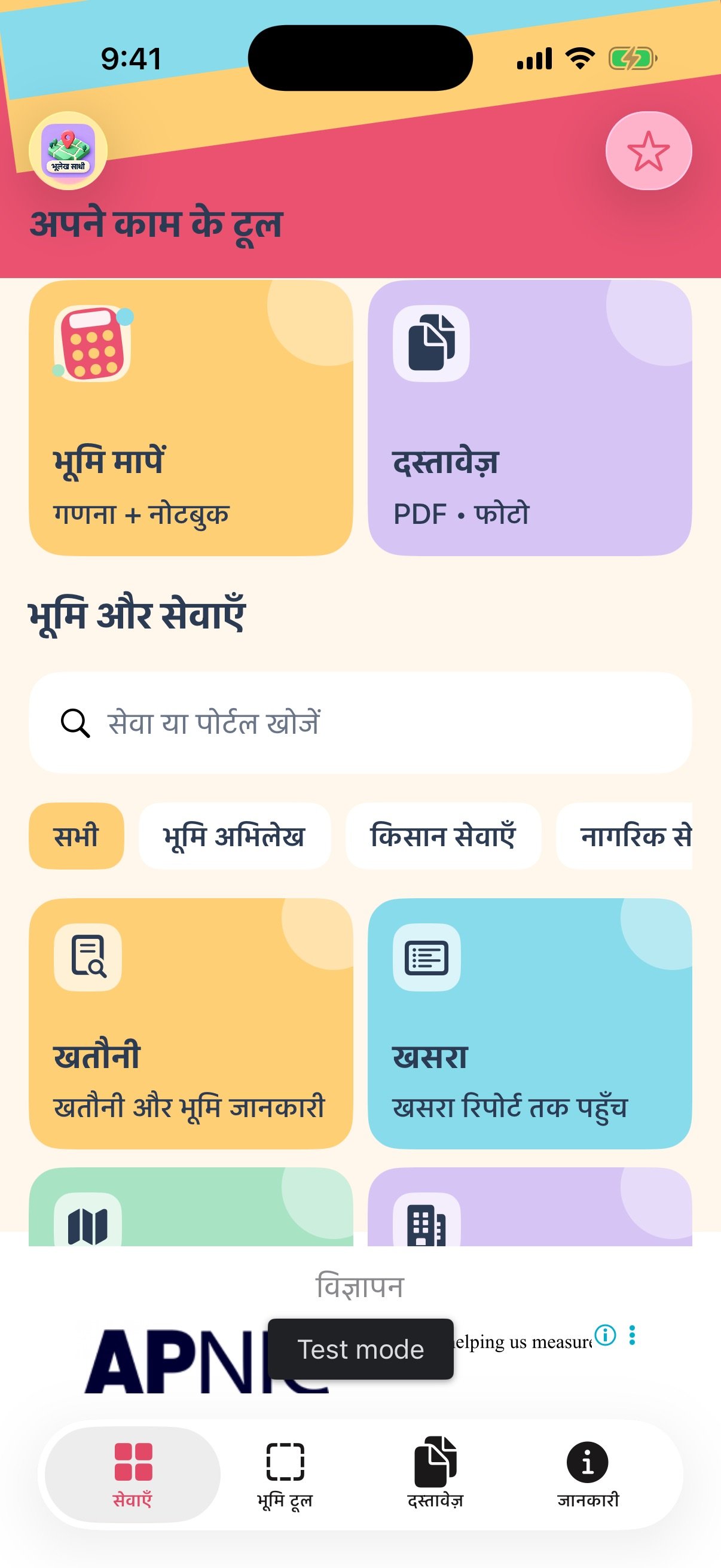
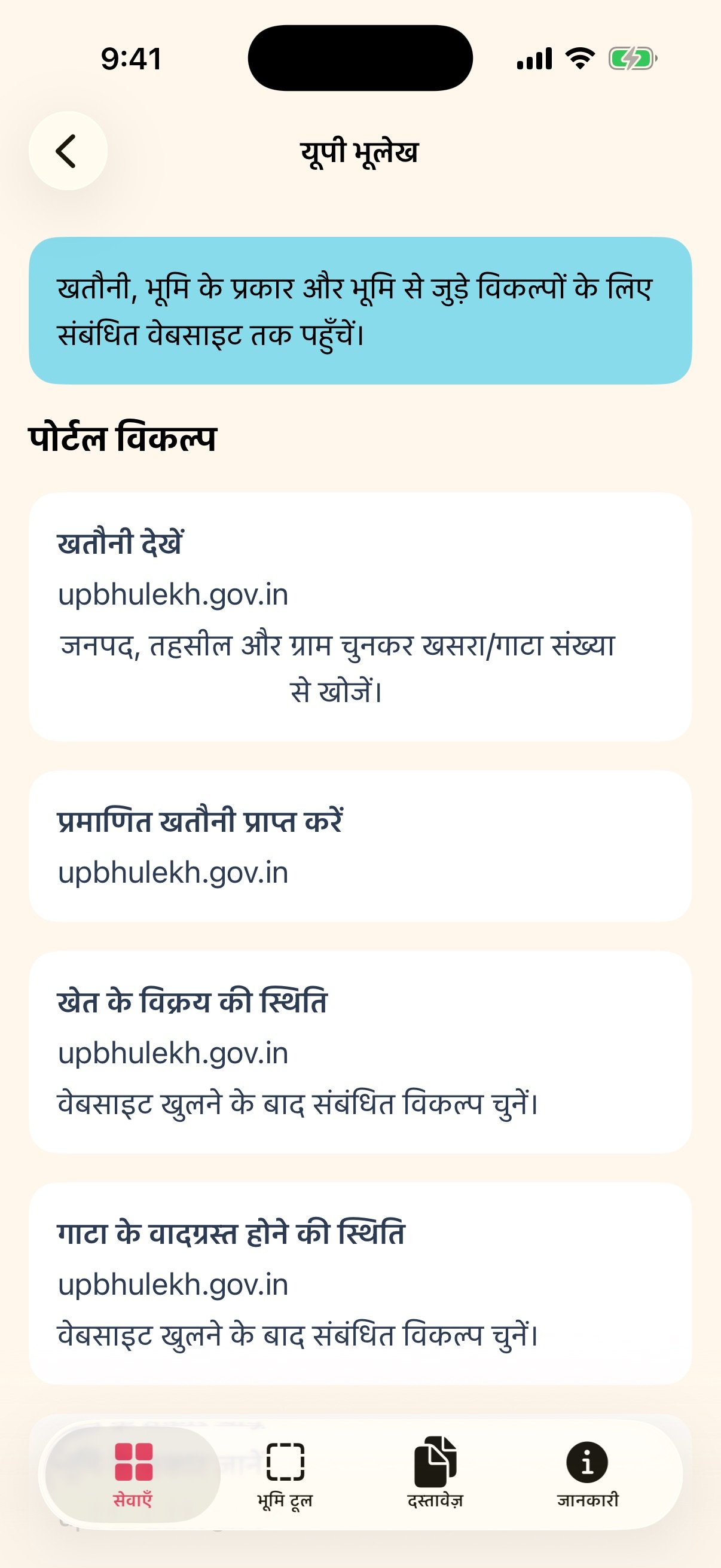
Image credit: original logo and screenshots published by the app developer on Apple App Store. These are real iOS interface images, not AI illustrations.
How Bhulekh Sathi features are organised
The app combines two kinds of help that often come up together. The first is knowing where to go online: which land portal offers which service. The second is handling the documents involved: reading, combining, splitting, converting, shrinking and scanning files. Instead of switching between separate apps for guidance and for files, both live in one place.
Bhulekh Sathi describes itself as an independent guide. In practice, that means it helps you understand and navigate portals; it is not presented as a government portal itself.
Land portal guidance
Step-by-step portal guides
What it does: The core of the app is a set of guides that explain which portal gives you what, and walk you through the steps of using it. The original idea, in the app’s own words, is to answer “kaun se portal se kya milta hai” — which portal provides what.
When to use it: Land-related websites can be confusing, especially if you visit them rarely. A guide is useful when you are not sure which site to open for a particular task, or when you know the site but get stuck partway through the process.
Example scenario: A farmer wants to look up information about a plot before talking to a relative about a family land matter. Rather than searching around and guessing which website is the right one, he opens the guides in Bhulekh Sathi, finds the portal that matches what he needs, and follows the steps in order. He spends his time on the task itself instead of on figuring out where to start.
PDF tools for land paperwork
PDF reader
What it does: Lets you open and read PDF files inside the app.
When to use it: Many documents you download or receive are PDFs. Having a reader in the same app as your guides means you can check a file right after getting it.
Example scenario: A land owner downloads a document while following a portal guide. She opens it straight away in the built-in reader to confirm it is the right file before sharing it with her family.
Merge PDFs
What it does: Combines several PDF files into one.
When to use it: When someone asks for “all your papers” in one file, or when you simply want related documents kept together.
Example scenario: A small business owner buying a piece of land has a few separate PDFs related to the purchase. He merges them into a single file so it is easier to send and harder to lose a page.
Split PDFs
What it does: Breaks one PDF into smaller parts.
When to use it: When a long file contains pages you need to share separately, or when only a few pages are relevant.
Example scenario: A student helping his parents with paperwork has one large PDF but only needs to send a couple of pages from it. He splits out those pages and shares just what is required.
Image tools
Image to PDF
What it does: Converts images into a PDF document.
When to use it: Photos of papers are easy to take but awkward to send in a formal way. Turning them into a PDF gives you a single, tidy document.
Example scenario: A farmer has photographed several pages of an old paper record on his phone. He converts the images into one PDF so the pages stay in order and can be shared as a proper document.
Compress
What it does: Reduces file size.
When to use it: When a file is too large to upload or send comfortably, or when you want to save storage space.
Example scenario: A land owner tries to send a document but finds the file is heavy. She compresses it in the app and then shares the smaller version.
Document scanner
What it does: Lets you scan paper documents using the app, turning physical pages into digital copies.
When to use it: Whenever the paper is in your hand and you need a digital version, especially if you do not have access to a separate scanning machine.
Example scenario: A family keeps important land papers in a cupboard at home. Before anyone carries the originals outside, a family member scans them so there is a digital copy available. Combined with the merge and compress tools, those scans can then be organised into one manageable file.
Built to stay light
Lightweight and ad-light
What it means: The app is designed to be lightweight and to keep ads light, so the focus stays on the guides and tools.
Why it matters: If you use your device for many things and want a focused utility rather than a heavy one, this is a practical benefit. It is also helpful when you are in the middle of a task and simply want to get it done without distraction.
Putting the features together
The tools work best as a sequence. A typical flow might look like this:
- Use a step-by-step portal guide to find the right place for your land-related task.
- Open any downloaded PDF in the reader to check it.
- Scan any paper documents you also need, or convert phone photos into a PDF.
- Merge related files into one, or split out only the pages you need.
- Compress the final file if it is too large to share easily.
If PDF work is your main need, you may also like our post Introducing PDF Work: A Complete PDF Toolkit App on Your Phone.
Next step
To see the guides and tools for yourself, visit the Bhulekh Sathi app page. You can also browse all apps from our studio, or contact us if you have a question about the app.
Frequently Asked Questions
What is Bhulekh Sathi used for?
Bhulekh Sathi is an independent land portal guide that explains which portal provides what, with step-by-step guides. It also includes PDF and image tools so you can handle related documents in the same app.
Is Bhulekh Sathi an official government app?
No. The app describes itself as an independent land portal guide. It helps you understand and navigate portals rather than being a portal itself.
What PDF tools does Bhulekh Sathi include?
The app includes a PDF reader along with tools to merge and split PDF files. It also offers image to PDF conversion and compression.
Can I scan paper documents with Bhulekh Sathi?
Yes, the app includes a document scanner. You can use it to create digital copies of paper documents and then combine them with the other PDF tools.
Does Bhulekh Sathi have ads?
The app is described as lightweight and ad-light, meaning it is designed to keep ads to a minimum so the focus stays on the guides and tools.
One response to “Bhulekh Sathi Features Explained: Portal Guides and PDF Tools”
[…] with built-in document handling utilities. For an in-depth breakdown of these tools, read our Bhulekh Sathi features explained guide. Core capabilities […]