Finding a reliable pdf editor app free of cost on your smartphone can save hours of frustration when applying for government schemes, recruitment drives, or land registry updates. Most official portals require applicants to upload supporting records as single, lightweight PDF files with strict file size caps. Doing this directly on your mobile phone avoids repeated trips to internet cafes, provided you have the right utility to view, combine, and resize your documents.
Why Mobile PDF Tools Are Essential for Government Applications
State service portals, including public service delivery platforms like the e-District UP Portal and land registries, frequently require digital copies of certificates, identity proofs, and land records. When downloading a digital khatauni from the official UP Bhulekh Portal or saving an identity document, the files often arrive in different formats or with file sizes that exceed online submission limits.
Most government portals enforce two strict constraints during document submission:
- Format limits: Many web forms reject multiple individual photo uploads and instead mandate a single multi-page PDF containing all supporting documents.
- File size boundaries: Application portals frequently impose maximum file sizes, often capping attachments at 100 KB, 200 KB, or 500 KB to keep server loads manageable.
Without a mobile tool to adjust these files, submissions fail with generic file error warnings. Having an efficient mobile utility allows you to scan, reorder, and resize pages instantly before uploading.
Key Features of a Practical Mobile PDF Editor
Not every PDF reader on the app store is suited for administrative paperwork. Many tools only display text or demand expensive subscriptions for basic modifications. For preparing online forms, your tool should handle practical document assembly tasks:
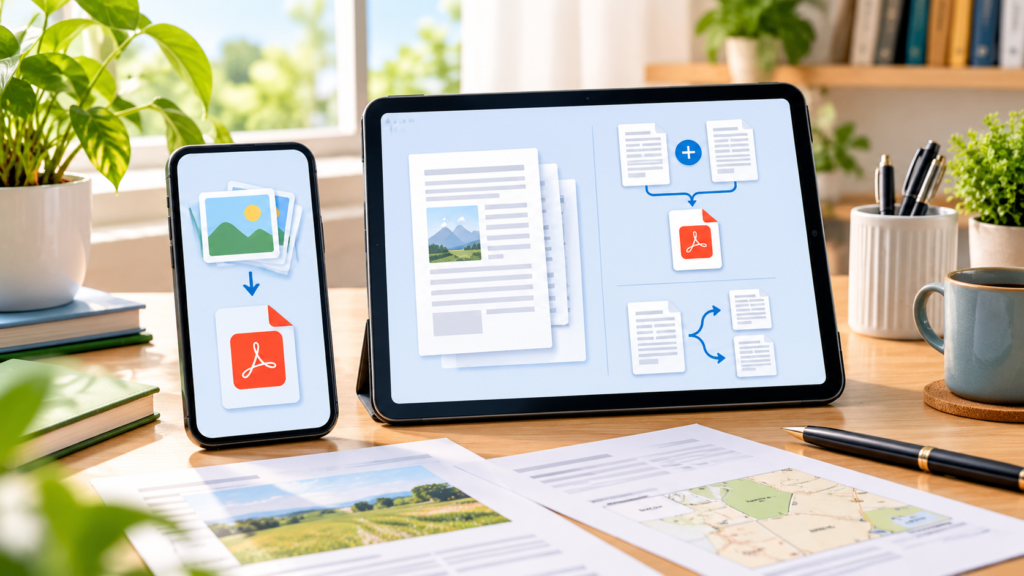
- Page Merging and Splitting: The capability to join distinct files—such as an identity card, an income certificate, and a land paper—into one ordered document.
- Selective Page Extraction: The ability to pull out specific pages from a bulky registry file or case judgment without re-scanning the entire document.
- Image to PDF Conversion: Converting photos taken on your phone camera directly into clean, standardized document pages.
- Size Compression: Downsizing large files to help them fit under government portal upload thresholds.
If you are looking for an Android tool dedicated to these routines, you can review PDF Work: Reader & Tools. It focuses on core utility tasks such as merging, splitting, extracting pages, turning camera images into PDFs, and attempting size compression targets on your device. You can explore this and other helpful tools in our collection of Android productivity apps.
How to Merge Multiple Land and Identity Certificates into One PDF
A common hurdle in filing administrative claims is combining disparate records. For instance, an application might require your Aadhaar card, residence proof, and revenue record combined into one upload.
To merge files neatly on your phone:
- Collect all required documents on your phone storage, ensuring all camera captures are clear, legible, and cropped to remove background clutter.
- Open your chosen PDF tool and select the merge function.
- Select the files in the logical sequence required by the department guidelines (for example: application slip first, identity document second, land record third).
- Review the page thumbnails to ensure none are rotated upside down or out of place.
- Export the combined file and assign it a clear, simple name without special characters, which some portal servers reject.
How to Compress PDF Documents Under 100 KB or 200 KB
Downsizing a PDF document while preserving readable text requires careful balancing. Applying excessive compression can blur vital information such as revenue plot numbers, signatures, or official stamps, which may lead to document rejection during verification.
Follow these guidelines to compress your files safely:
- Crop before converting: If you are creating a PDF from phone photographs, crop out non-essential borders like tables or bedsheets before converting the image. Extra borders increase file weight without adding value.
- Select target compression cautiously: Some utilities allow you to specify target file size brackets (such as targeting an output under 200 KB). However, exact file sizes cannot be guaranteed for every complex document because photographic content compresses differently than pure text.
- Always inspect readability: After applying compression, open the resulting PDF and zoom in to verify that seal impressions, registration numbers, and dates remain distinct and readable.
Ensuring Data Privacy While Editing Confidential Documents Offline
Identity documents, revenue details, and bank account certificates contain sensitive personal data. Many online compression websites require you to upload your files to unknown external servers for processing, which introduces privacy concerns.
Whenever handling personal records:
- Use mobile applications that perform page reordering, merging, and compression directly on your local device without demanding permanent internet connectivity.
- Avoid free web conversion tools that request unnecessary personal details or device permissions.
- Keep a permanent backup of the original, uncompressed scans in a secure folder before modifying or downscaling files.
Step-by-Step Guide to Prepare Upload-Ready PDFs on Android
Before beginning your next official portal submission, follow this structured routine to ensure error-free uploads:
- Check portal requirements: Read the application instructions on the official department portal to note the permitted file format, naming guidelines, and maximum allowable size.
- Assemble source pages: Digitize all required physical documents using a clean scanner or phone camera under good lighting.
- Merge into a single file: Use your mobile tool to sequence the pages properly.
- Adjust the file size: Run the compression feature to bring the document under the portal’s stated ceiling.
- Conduct a final review: Open the final saved file in your PDF viewer, confirm that all text is legible, and inspect the file details in your file manager to confirm the size is within the allowed limits.
Frequently Asked Questions
Can I merge PDF files on an Android phone without an internet connection?
Yes, offline mobile document tools can combine and split existing PDF files locally on your phone storage without requiring an active internet connection.
Why does a government website reject my PDF even when the file size is under the limit?
Web portals may reject PDFs if the file name contains spaces or special characters, if the document is password-protected, or if the file was corrupted during an aggressive compression process.
Does compressing a PDF always guarantee the exact target size?
No. Compression outcomes depend heavily on the original content, such as whether the file consists of plain digital text or high-resolution camera images. Always check the final file size in your storage manager after processing.
How can I prevent my compressed certificates from becoming unreadable?
Before converting, crop out unnecessary margins from your source photos and avoid extreme compression settings. Zoom in on the final document to confirm that registration numbers, stamps, and signatures remain sharp.