PDF Work: Reader & Tools is a PDF toolkit app that lets you read, merge and split PDFs and create PDFs from existing images directly on your phone. It is made for anyone who regularly receives, fills or sends documents and does not want to hunt for a computer every time a file needs a small change.
What PDF Work: Reader & Tools is
The app’s own tagline sums it up: Read · Merge · Split · Create PDFs. Instead of keeping one app for opening files, another for turning photos into documents and a third for shrinking file size, PDF Work puts these jobs in a single place. It sits in the Productivity category and is built by the developer Akanksha.
The idea is simple: the common things people need to do with PDFs should be possible on the device they already carry. You can see the full app details on the PDF Work: Reader & Tools app page.
The problem it solves
PDFs are everywhere: forms, certificates, receipts, notices, ID copies and study material. The trouble usually starts when the file is not quite right. It may be too large to upload to a website, it may contain extra pages you do not want to share, or you may only have a paper copy when a digital one is required.
Without the right tools, these small problems turn into a trip to a cyber cafe or a wait until you reach a computer. A PDF toolkit on your phone removes that step, so you can prepare the document where you are and send it when you need to.
Key features of this PDF toolkit app
Each feature below covers a common task. Here is what it means for you in practice.
Fast PDF reader
The starting point for most people is simply opening a file. The Google Play listing describes a PDF reader. Open the file and check that every page is legible before you share it. Speed can vary by phone and file size.
Merge and split pages
Merging joins several PDFs into one file. This is useful when a form asks for a single upload but your documents are spread across separate files, such as different pages of a certificate or several receipts.
Splitting does the opposite: it lets you separate pages from a larger PDF. If you only need to share one page of a long document, splitting helps you send just that part and keep the rest private.
Create PDFs from existing images
The current Google Play listing describes turning saved images into a PDF. Take a clear photo with your phone camera first if you only have paper; then check page order and readability after conversion.
Compress PDFs
The current Google Play release notes list quick size targets from 20 KB to 450 KB, plus a custom KB/MB target. These are selectable targets, not a guarantee that every file will reach that size or remain readable. Open the compressed copy and check text, signatures and images before submitting.
Feature limit: The current public listing does not confirm PDF-to-image conversion, password locking or a built-in camera scanner. Do not depend on those features without checking your installed version.
Who benefits most
Because the tools cover everyday document tasks, the app suits a wide range of people. A few typical examples:
- Students who need to upload mark sheets, certificates or assignments as PDFs, often within a size limit.
- Small business owners who share bills, quotations or receipts and want them in one clean file.
- Farmers and land owners who keep copies of land records and other papers and need to send them in a digital form. If you work with land records, our post on Bhulekh Sathi, a land portal guide app with PDF tools may also be useful.
- Anyone applying for services online who has to prepare scanned, merged or compressed documents before submitting a form.
Typical ways to use it
Here is how the features fit together in real situations:
- Preparing an application: photograph your papers clearly, make a PDF from the saved images, merge files if needed, then check whether compression meets the portal limit.
- Sharing only what is needed: open a long PDF in the reader, split out the single page you need and send just that file.
- Turning gallery photos into a document: pick the photos of your papers, convert them to a PDF and keep everything in one file.
- Protecting personal files: keep your phone secured and send documents only to the intended recipient; password locking is not confirmed by the current Play listing.
The current Google Play listing marks PDF Work as “Contains ads.” Its Data safety disclosure is provided by the developer and may change; review it and the linked privacy policy before installing. The public app description says PDF processing runs on-device, but that does not establish the data practices of ads or every app component. Never enter banking passwords, UPI PINs or OTPs into a document utility.
How to get started
The best first step is to visit the PDF Work app page, where you will find the app’s details in one place. Once you have it, start with a task you already need to do, such as converting a photo to PDF or compressing a file for an upload. That is the quickest way to see how the tools work together.
Next step
If you often deal with documents on your phone, PDF Work: Reader & Tools is worth a look. Open the app page to learn more, browse our other apps for related tools, or contact us if you have a question.
Frequently Asked Questions
What can I do with PDF Work: Reader & Tools?
The current Google Play listing describes reading PDFs, merging and splitting files, extracting pages and creating PDFs from existing images. Release notes mention compression. PDF-to-image, locking and camera scanning are not confirmed there.
Can I turn photos of my documents into a PDF?
Yes. The Play listing describes creating PDFs from saved images. PDF-to-image conversion is not confirmed by the current listing.
Can I make a PDF smaller for an online form?
Release notes list quick targets from 20 KB to 450 KB and a custom KB/MB target. The resulting size is not guaranteed; check the portal limit and inspect the output for readability.
Does PDF Work contain ads?
Yes. Google Play currently labels PDF Work as “Contains ads.”
Who made PDF Work: Reader & Tools?
The app is developed by Akanksha. You can find more details on the app's page on our website.
Sources checked 23 October 2026: PDF Work on Google Play, its Data safety disclosure and the publisher’s current release notes. Features may change by version.
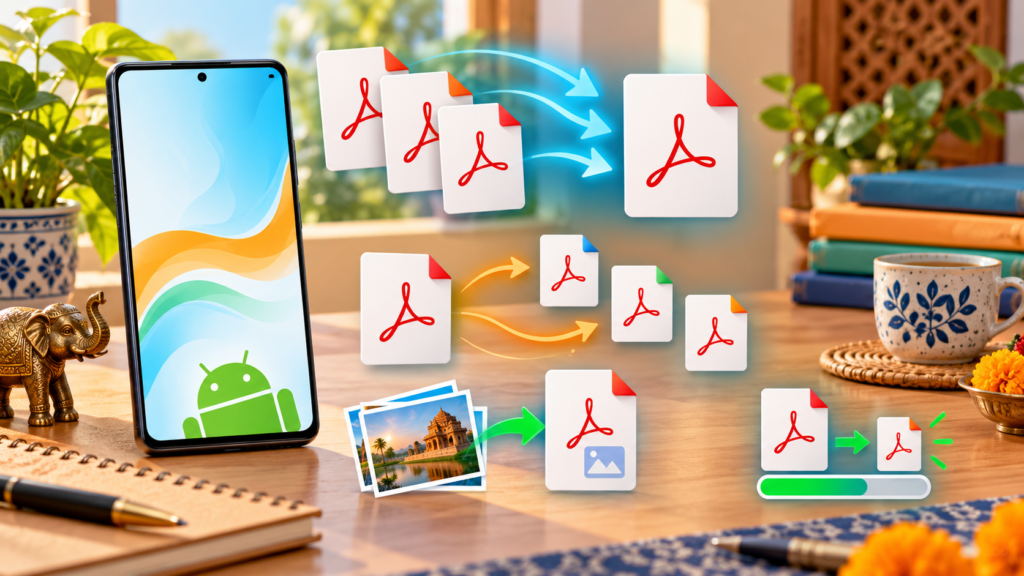
Featured image credit: Original conceptual artwork generated with OpenAI ImageGen for SarkariAsk; it is not a PDF Work app screenshot.